
My Pragmatic Way to Use Labels in Password Managers
About 10 years ago, I started using a labeling system for my logins, and it has proven really useful. My goal with this post is to briefly introduce it and give a few example scenarios for why you might want to use it.
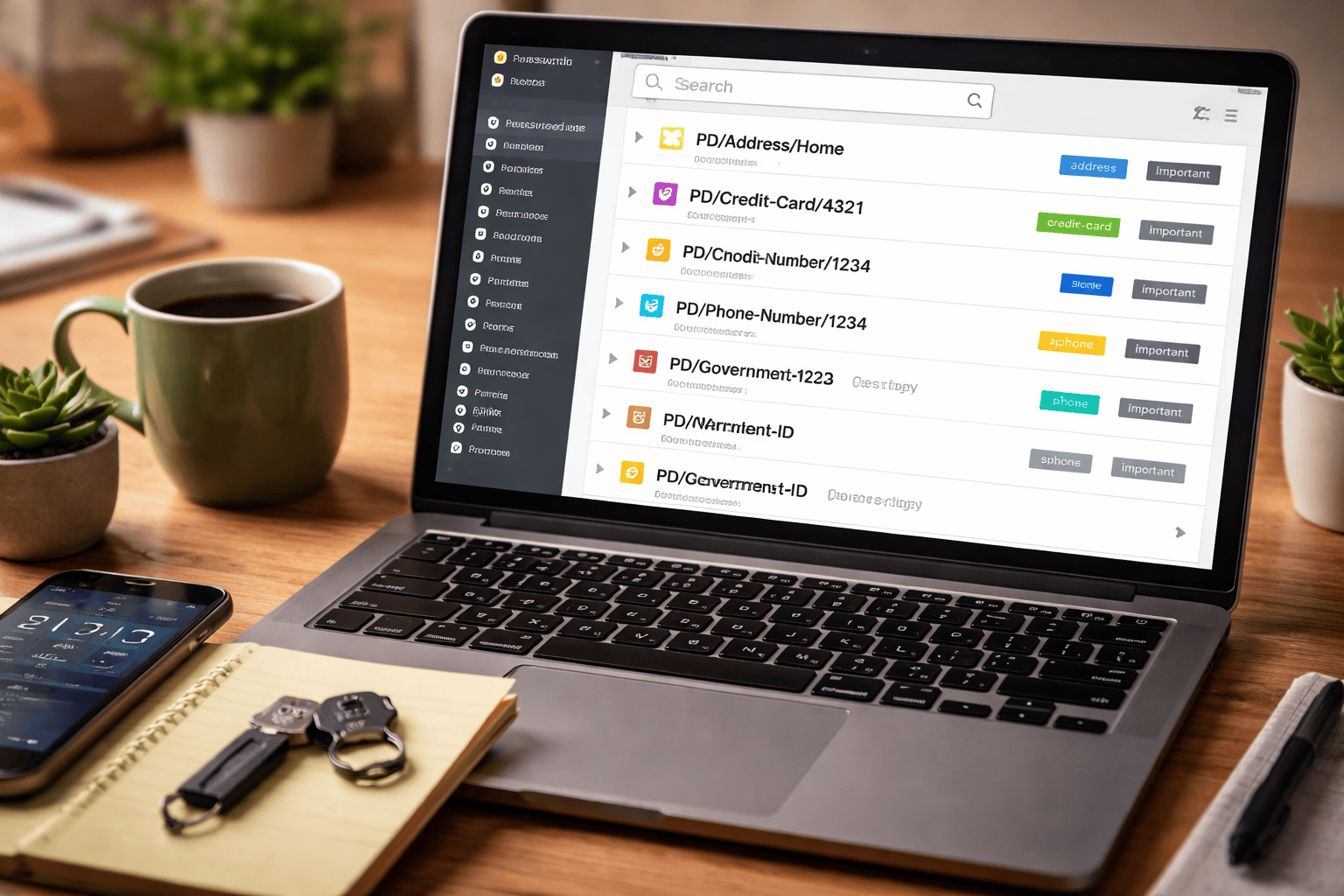
About 10 years ago, I started using a labeling system for my logins, and it has proven really useful. My goal with this post is to briefly introduce it and give a few example scenarios for why you might want to use it.
The format
👉 Example: PD/Credit-Card/7777
See what I did there?
The format is simple: PD/CATEGORY/IDENTIFIER
The PD stands for "personal data", and everything after that helps narrow it down.
Use Case
Every few years, your credit card expires, and you need to update all accounts that use it for billing.
If you’re using a label, you can simply filter for it and instantly get your to-do list.
But this is not only useful for credit cards. There are many more use cases: bank accounts, addresses, phone numbers, government ID renewal, ...
Labels I use
Following this format, I tag my logins with labels like:
PD/Bank-Account/BBVAPD/Bank-Account/INGPD/Bank-Account/N26PD/Address/Sesame-Street(current home address)PD/Address/Parents(other address if relevant)PD/Credit-Card/7777PD/Phone-Number/1234PD/Phone-Number/7654PD/Birthdate(typically doesn't change, still great for tracking who you gave this data to 😅)PD/Place-of-Birth(same)PD/Government-ID(yes this can change, depending on the country)PD/Passport(typically changes on renewal)
And some that aren't prefixed with PD
yubikey(very handy if you need to replace a yubikey)Work/CompanyXYZ(if your company doesn't provide you with a password manager, you can organize the logins this way)Projects/ProjectXYZ(for projects you might be involved in)
Keep it simple
This system works because it is simple. When I create or update an entry, I only spend a few extra seconds adding or updating labels. That tiny effort saves a lot of time later.
Final thoughts
For me, a password manager is not just a place to store secrets. It is also a map of where parts of my identity are spread across the internet. That map becomes incredibly useful whenever something changes in real life.
If you already use a password manager, this is one of the easiest upgrades you can make to your way of using it 🤗
Other tips for Password Managers
- Password Manager Recommendations: If you are still looking for a password manager, check out: https://www.privacyguides.org/en/passwords/
- Store sensitive documents separately:
I also store highly sensitive data in my password manager, such as pictures of my passport, government ID, or the digital certificates of those documents.
Important: use a separate vault or database for this, ideally protected by a different strong password. You do not want your browser or everyday login workflow to have access to that vault. - Watch out for compromise: A password manager is only as safe as the environment you use it in. If your computer is compromised and you unlock your password manager, there is a good chance an attacker could access it too. Also keep in mind that AI tooling is prone to attacks.
- Use stronger second factors: If a website allows it, use a YubiKey as a second factor. That gives you an extra layer of security in case your password manager is ever compromised.